
What is a CRM and how does it work?
A CRM (Customer Relationship Manager) is a website or software that allows you to manage your relationship with your customers, usually by keeping contacts, scheduling bookings, and organizing your agenda within one page.
The CRM is a separate tool: your Touchpix events don't show up here on their own, and adding a booking doesn't create an event. To connect the two, pick the event in the booking. Payments aren't handled here. A booking's status is your own note of what has been paid.
How to use it
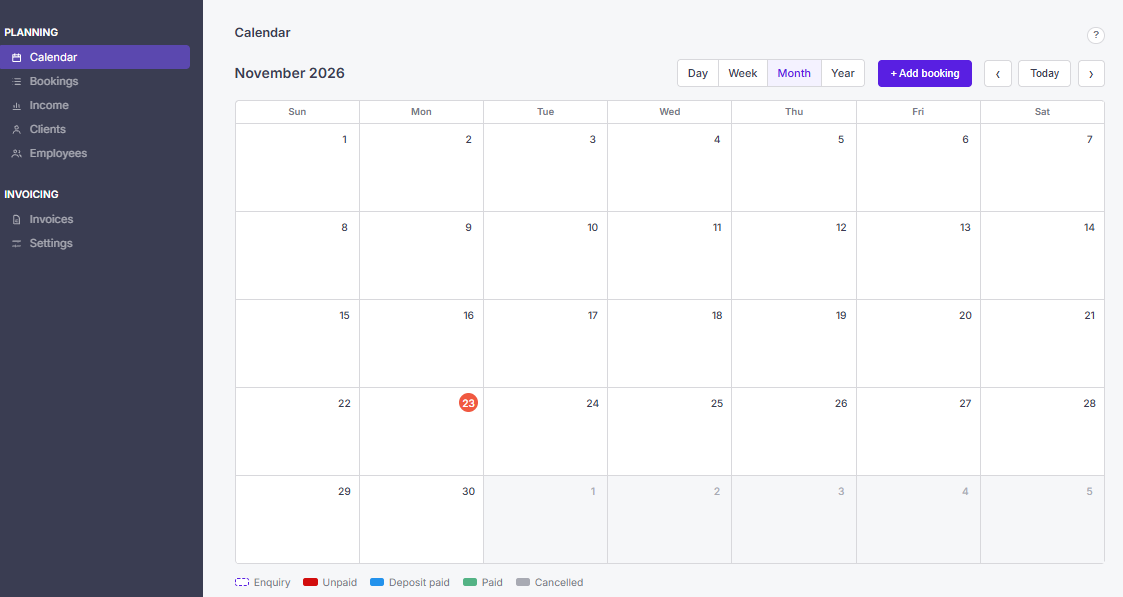
Calendar
Here you can have a visual scheme of your bookings, organized in date and time. Create new bookings and set them up according to its status. View the calendar in day, week, month, or year and organize your bookings in an easy way.
Bookings
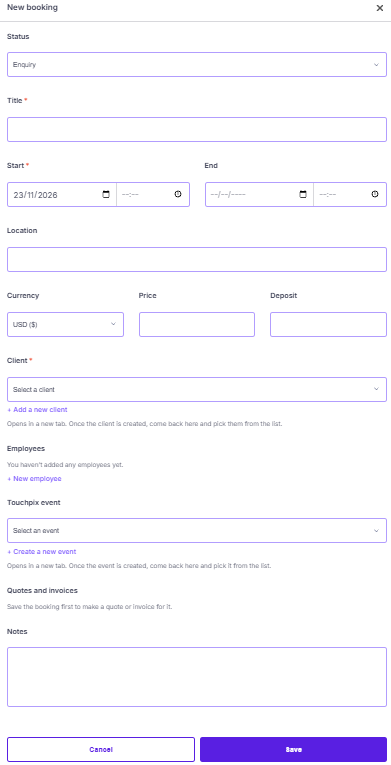
Here you can create your bookings, search by name, date or status, modify them and keep your bookings organized.
Status: Set if the booking is an enquiry, is unpaid, has paid the deposit or if its paid in full. Note if the booking has been cancelled as well.
Title: Add a title to your booking
Start and end: Set a start and (optionally) end time and date for your booking
Location: Add the location of your booking
Currency, price and deposit
Client: Choose a client of your list or create a new one
Employee: Add an employee running the event, if you have
Event: Select the event associated with this booking (the event has to be created first)
Quotes and invoices: Add documents to the booking with associated invoices, quotes, or similar. Save the booking first to access this option
Notes: Anything you want to add to the booking
Income
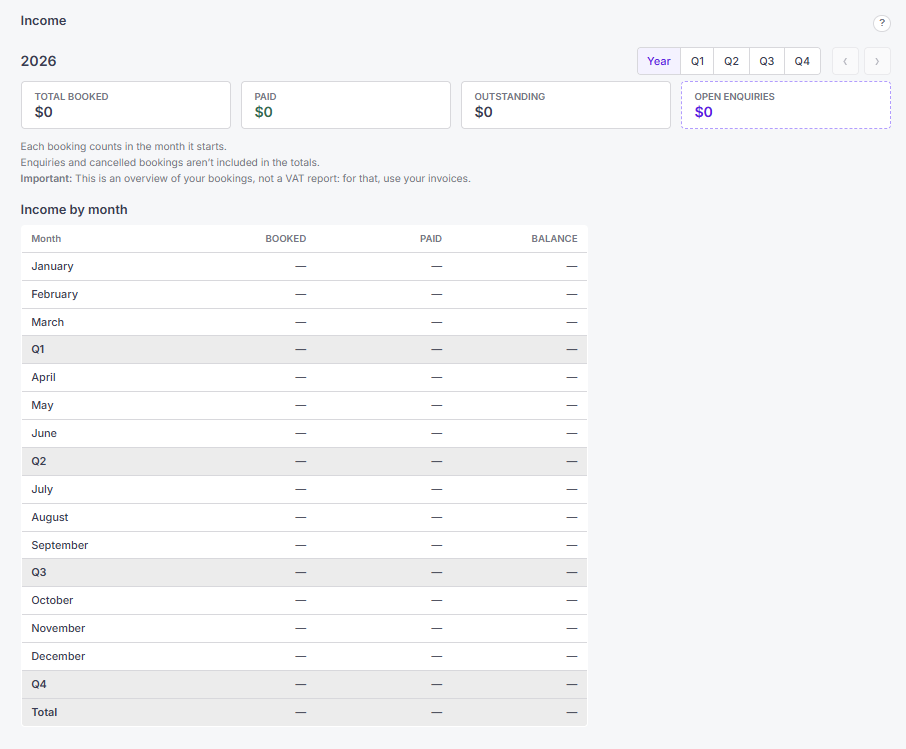
In this tab, you will find a summary of your income based on the information you input in your bookings. You can see by month, by quarter, the total amount booked, paid, outstanding and open inquiries.
Clients
Use this tab to create and search your clients. You can create a client profile with a name, company, email, phone, VAT / tax ID, address, and other notes. These clients saved can be used later when creating a booking. Useful when you have recurrent clients, or event new ones.
Employees
Create eployees profiles and assign them to events. Add a name, email, phone, notes, and choose whether this employee is available for booking or not to be shown when creating a booking. Adding employees to each event is useful when you want to keep a track of it, keeping an organized schedule in your company.
Invoices
In this tab, you can create custom quotes or invoices and convert them to PDF. You can choose among your clients, the associated booking, date, currency, VAT % if it applies, items (with quantity and price), notes, and footer. In general, this is a quote/invoice generator that helps you creating them in an easy way without using external tools. Your information shwon in this document can be set up and modified in the next tab.
Settings
Here you can set up your information for the invoices and create your business profile. You can set up your:
Logo
Business name
VAT / tax ID
Address
Country
Email, phone, website
Default currency
Charge VAT (if it applies to your business) and VAT rate
Invoice/quote number format and invoice/quote number
Increase by: How much the number goes up with each new quote or invoice
Footer: Payment details and anything else to show at the bottom of every quote and invoice